How to set up in-app notifications for Microsoft Dynamics 365
How to set up in-app notifications for Microsoft Dynamics 365
April 14th, 2025
5 min read
Microsoft have an in-app notifications feature for Microsoft Dynamics 365 and model-driven apps using Power Automate. Continue reading to find out more about this feature…
What are in-app notifications?
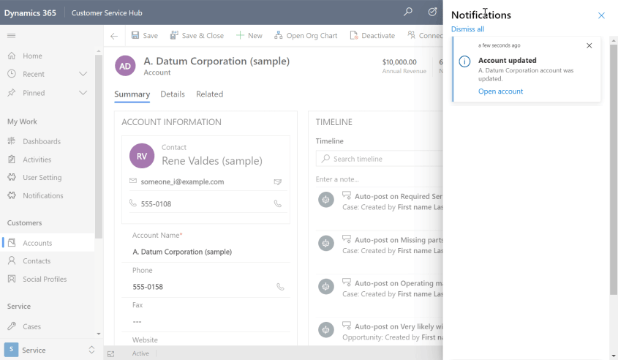
In-app notifications are alerts that appear directly within your Dynamics 365 or model-driven app environment, helping users stay informed about important events as they happen. These notifications surface inside the app (via the notification bell), ensuring users never miss key updates while working in the system.
They are especially valuable for teams who rely on real-time visibility of changes to records, assignments, or workflows, without needing to check their emails or switch systems.
Benefits of in-app notifications
- Real-time alerts for key activities and changes
- Improved user engagement, keeping important tasks front and centre
- Reduces dependence on email notifications
- Enhances visibility for sales, service, and operational teams
- Fully customisable using Power Automate
- Works across all model-driven apps, including custom solutions
- Accessible in both browser and mobile apps
These benefits make in-app notifications a powerful tool for boosting productivity and ensuring smooth workflow management.
Examples of where in-app notifications can be used
In-app notifications have been developed to alert users to important tasks that require attention. Below is a clearer, expanded set of real-world examples:
Customer Service
- A new case is assigned
- A case is escalated
- An SLA is at risk or breached
- A customer survey response is received
Sales
- A new lead is created
- A lead is qualified
- A new opportunity is assigned
- An opportunity is closed (won or lost)
Operations / Workflow
- A callback or follow-up task is created
- A new item is added to a queue
- A key field on a record is updated
- Approval requests (when integrated with Power Automate)
The difference between in-app notifications and push notifications
In-app notifications are available on both mobile devices and browsers, whereas push notifications are only available on mobiles. Additionally, push notifications function regardless of whether the app is open or not but in-app notifications only appear when the app is open. This functionality ensures that users do not feel inundated with messages.
How to set up in-app notifications for Microsoft Dynamics 365
This process is outlined in our ‘how to’ video, however, we have put together a brief overview below:
1. Upon release of the new notification centre, a new bell icon will appear in the top right-hand corner of your Dynamics 365 applications. This is where users will be able to see all their recent notifications as well as configure their settings.
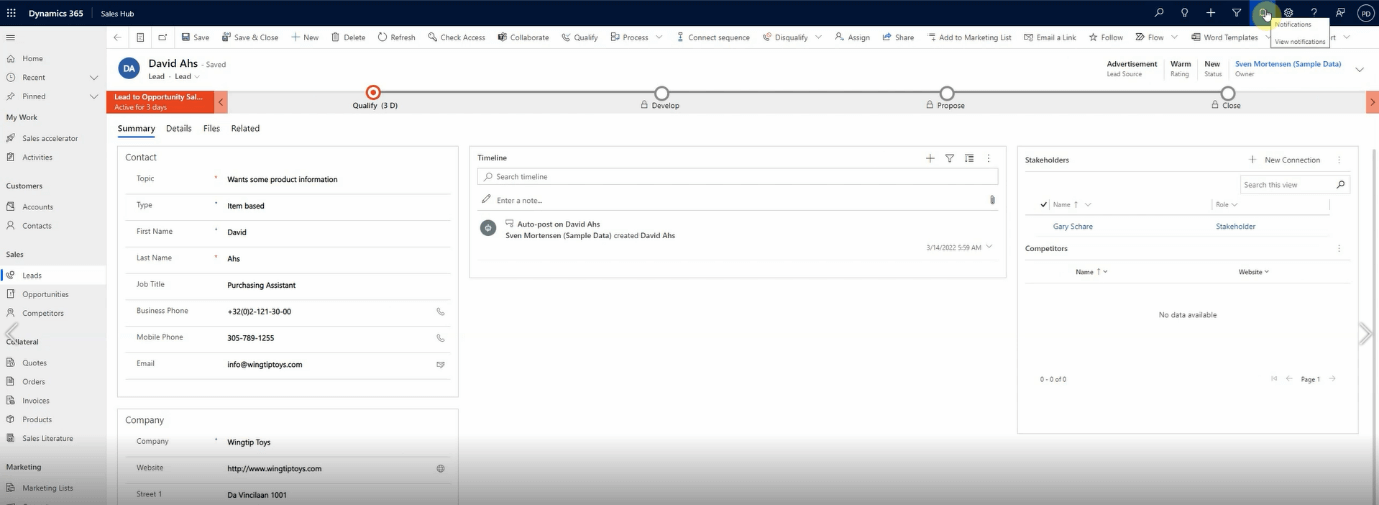
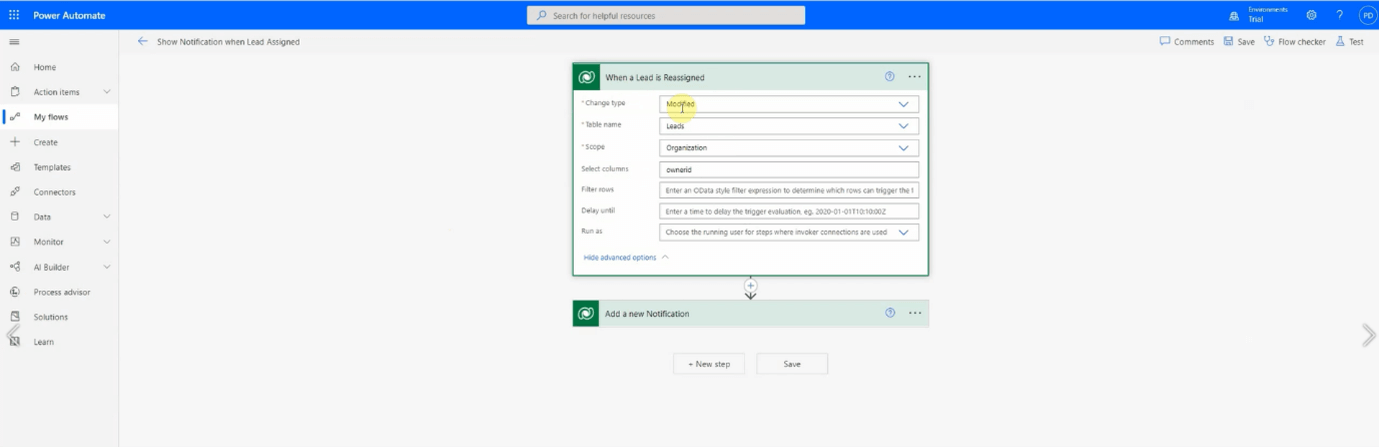
2. To create a new notification flow using Power Automate, first define a trigger. In our demonstration, our trigger is when the owner of a lead is updated.
3. To send the notification to a specified user, add a new record action using the Dataverse connector. Ensure you give your notification a title, then open the advanced options and set the owner as the user you wish to receive the notification.
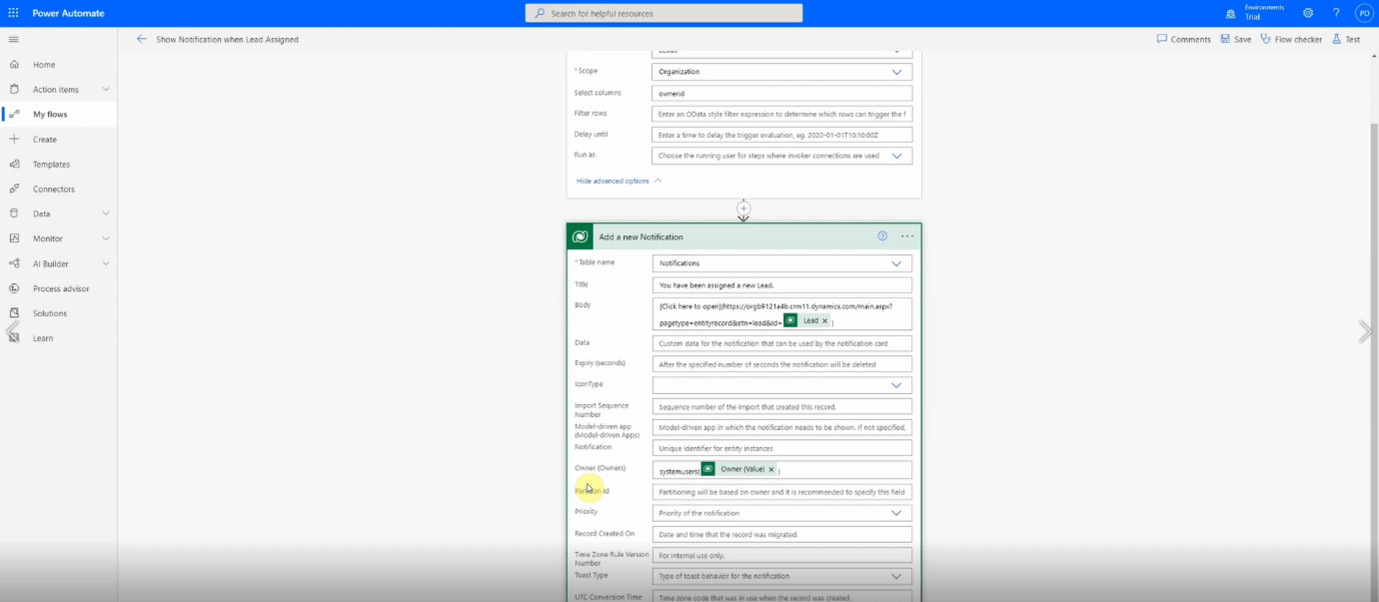
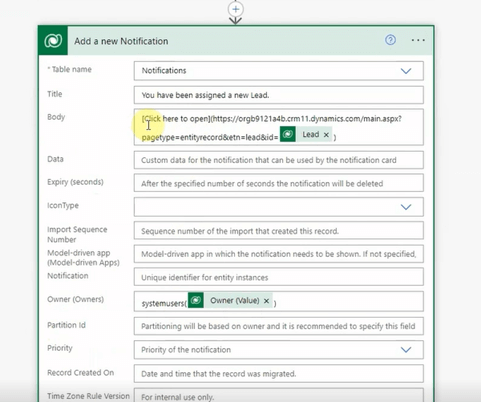
4. To include a link in the body of your notification, for example, a link to the relevant record, write the text you would like the link to display within square brackets. Immediately after these brackets, enter the URL you would like to include within regular brackets. This is then followed by the ID for the lead and the trigger. Press save and the flow is complete.
Video demonstration: How to set up in-app notifications for Microsoft Dynamics 365
Get in Touch
If you would like to discuss how Pragmatiq can support your business, please email us at info@pragmatiq.co.uk, or call us on 01908 038110.
Want to keep in touch?
Sign up to our newsletter for regular updates.
"*" indicates required fields